标签归档:GitLab

自建 gitlab 徽标问题导致项目 500 问题解决

问题

最近内部 gitlab 某些项目打开就 500 了, 看 gitlab 报错日志如下:

gitlab  | {"method":"GET","path":"/xxx/xxx","format":"html","controller":"ProjectsController","action":"show","status":500,"time":"2025-08-28T00:51:41.511Z","params":[{"key":"namespace_id","value":"xxx"},{"key":"id","value":"xxx"}],"remote_ip":"10.17.7.63","user_id":74,"username":"xxxgitlab | {"method":"GET","path":"/xxx/xxx","format":"html","controller":"ProjectsController","action":"show","status":500,"time":"2025-08-28T00:51:41.511Z","params":[{"key":"namespace_id","value":"xxx"},{"key":"id","value":"xxx"}],"remote_ip":"10.17.7.63","user_id":74,"username":"xxx","ua":"Mozilla/5.0 (X11; Linux x86_64; rv:140.0) Gecko/20100101 Firefox/140.0","correlation_id":"01K3Q2F5DXP8Y33B25TW9SSMYM","meta.user":"xxx","meta.project":"xxx/xxx","meta.root_namespace":"storage","meta.caller_id":"ProjectsController#show","meta.remote_ip":"10.17.7.63","meta.feature_category":"projects","meta.client_id":"user/74","redis_calls":21,"redis_duration_s":0.007123,"redis_read_bytes":2997,"redis_write_bytes":2370,"redis_cache_calls":20,"redis_cache_duration_s":0.006591,"redis_cache_read_bytes":2816,"redis_cache_write_bytes":1035,"redis_shared_state_calls":1,"redis_shared_state_duration_s":0.000532,"redis_shared_state_read_bytes":181,"redis_shared_state_write_bytes":1335,"db_count":41,"db_write_count":0,"db_cached_count":10,"cpu_s":2.291446,"mem_objects":394125,"mem_bytes":52397272,"mem_mallocs":198648,"mem_total_bytes":68162272,"queue_duration_s":0.009214,"exception.class":"Rack::Timeout::RequestTimeoutException","exception.message":"Request ran for longer than 60000ms","exception.backtrace":["lib/gitlab/url_blocker.rb:113:in `getaddrinfo'","lib/gitlab/url_blocker.rb:113:in `get_address_info'","lib/gitlab/url_blocker.rb:48:in `validate!'","app/validators/addressable_url_validator.rb:83:in `validate_each'","app/models/badge.rb:43:in `build_rendered_url'","app/models/badge.rb:36:in `rendered_image_url'","app/models/badges/project_badge.rb:15:in `rendered_image_url'","app/views/projects/_home_panel.html.haml:93","app/views/projects/_home_panel.html.haml:89","app/views/projects/_home_panel.html.haml:87","app/views/projects/show.html.haml:14","app/controllers/application_controller.rb:128:in `render'","app/controllers/application_controller.rb:538:in `block in allow_gitaly_ref_name_caching'","lib/gitlab/gitaly_client.rb:341:in `allow_ref_name_caching'","app/controllers/application_controller.rb:537:in `allow_gitaly_ref_name_caching'","app/controllers/application_controller.rb:487:in `set_current_admin'","lib/gitlab/session.rb:11:in `with_session'","app/controllers/application_controller.rb:478:in `set_session_storage'","lib/gitlab/i18n.rb:99:in `with_locale'","lib/gitlab/i18n.rb:105:in `with_user_locale'","app/controllers/application_controller.rb:472:in `set_locale'","app/controllers/application_controller.rb:466:in `set_current_context'","lib/gitlab/metrics/elasticsearch_rack_middleware.rb:16:in `call'","lib/gitlab/middleware/rails_queue_duration.rb:33:in `call'","lib/gitlab/metrics/rack_middleware.rb:16:in `block in call'","lib/gitlab/metrics/web_transaction.rb:21:in `run'","lib/gitlab/metrics/rack_middleware.rb:16:in `call'","lib/gitlab/middleware/speedscope.rb:13:in `call'","lib/gitlab/request_profiler/middleware.rb:17:in `call'","lib/gitlab/jira/middleware.rb:19:in `call'","lib/gitlab/middleware/go.rb:20:in `call'","lib/gitlab/etag_caching/middleware.rb:21:in `call'","lib/gitlab/middleware/multipart.rb:172:in `call'","lib/gitlab/middleware/read_only/controller.rb:50:in `call'","lib/gitlab/middleware/read_only.rb:18:in `call'","lib/gitlab/middleware/same_site_cookies.rb:27:in `call'","lib/gitlab/middleware/handle_malformed_strings.rb:21:in `call'","lib/gitlab/middleware/basic_health_check.rb:25:in `call'","lib/gitlab/middleware/handle_ip_spoof_attack_error.rb:25:in `call'","lib/gitlab/middleware/request_context.rb:21:in `call'","config/initializers/fix_local_cache_middleware.rb:11:in `call'","lib/gitlab/middleware/rack_multipart_tempfile_factory.rb:19:in `call'","lib/gitlab/metrics/requests_rack_middleware.rb:74:in `call'","lib/gitlab/middleware/release_env.rb:12:in `call'"],"db_duration_s":0.23847,"view_duration_s":0.0,"duration_s":73.05203}","ua":"Mozilla/5.0 (X11; Linux x86_64; rv:140.0) Gecko/20100101 Firefox/140.0","correlation_id":"01K3Q2F5DXP8Y33B25TW9SSMYM","meta.user":"xxx","meta.project":"xxx/xxx","meta.root_namespace":"storage","meta.caller_id":"ProjectsController#show","meta.remote_ip":"10.17.7.63","meta.feature_category":"projects","meta.client_id":"user/74","redis_calls":21,"redis_duration_s":0.007123,"redis_read_bytes":2997,"redis_write_bytes":2370,"redis_cache_calls":20,"redis_cache_duration_s":0.006591,"redis_cache_read_bytes":2816,"redis_cache_write_bytes":1035,"redis_shared_state_calls":1,"redis_shared_state_duration_s":0.000532,"redis_shared_state_read_bytes":181,"redis_shared_state_write_bytes":1335,"db_count":41,"db_write_count":0,"db_cached_count":10,"cpu_s":2.291446,"mem_objects":394125,"mem_bytes":52397272,"mem_mallocs":198648,"mem_total_bytes":68162272,"queue_duration_s":0.009214,"exception.class":"Rack::Timeout::RequestTimeoutException","exception.message":"Request ran for longer than 60000ms","exception.backtrace":["lib/gitlab/url_blocker.rb:113:in `getaddrinfo'","lib/gitlab/url_blocker.rb:113:in `get_address_info'","lib/gitlab/url_blocker.rb:48:in `validate!'","app/validators/addressable_url_validator.rb:83:in `validate_each'","app/models/badge.rb:43:in `build_rendered_url'","app/models/badge.rb:36:in `rendered_image_url'","app/models/badges/project_badge.rb:15:in `rendered_image_url'","app/views/projects/_home_panel.html.haml:93","app/views/projects/_home_panel.html.haml:89","app/views/projects/_home_panel.html.haml:87","app/views/projects/show.html.haml:14","app/controllers/application_controller.rb:128:in `render'","app/controllers/application_controller.rb:538:in `block in allow_gitaly_ref_name_caching'","lib/gitlab/gitaly_client.rb:341:in `allow_ref_name_caching'","app/controllers/application_controller.rb:537:in `allow_gitaly_ref_name_caching'","app/controllers/application_controller.rb:487:in `set_current_admin'","lib/gitlab/session.rb:11:in `with_session'","app/controllers/application_controller.rb:478:in `set_session_storage'","lib/gitlab/i18n.rb:99:in `with_locale'","lib/gitlab/i18n.rb:105:in `with_user_locale'","app/controllers/application_controller.rb:472:in `set_locale'","app/controllers/application_controller.rb:466:in `set_current_context'","lib/gitlab/metrics/elasticsearch_rack_middleware.rb:16:in `call'","lib/gitlab/middleware/rails_queue_duration.rb:33:in `call'","lib/gitlab/metrics/rack_middleware.rb:16:in `block in call'","lib/gitlab/metrics/web_transaction.rb:21:in `run'","lib/gitlab/metrics/rack_middleware.rb:16:in `call'","lib/gitlab/middleware/speedscope.rb:13:in `call'","lib/gitlab/request_profiler/middleware.rb:17:in `call'","lib/gitlab/jira/middleware.rb:19:in `call'","lib/gitlab/middleware/go.rb:20:in `call'","lib/gitlab/etag_caching/middleware.rb:21:in `call'","lib/gitlab/middleware/multipart.rb:172:in `call'","lib/gitlab/middleware/read_only/controller.rb:50:in `call'","lib/gitlab/middleware/read_only.rb:18:in `call'","lib/gitlab/middleware/same_site_cookies.rb:27:in `call'","lib/gitlab/middleware/handle_malformed_strings.rb:21:in `call'","lib/gitlab/middleware/basic_health_check.rb:25:in `call'","lib/gitlab/middleware/handle_ip_spoof_attack_error.rb:25:in `call'","lib/gitlab/middleware/request_context.rb:21:in `call'","config/initializers/fix_local_cache_middleware.rb:11:in `call'","lib/gitlab/middleware/rack_multipart_tempfile_factory.rb:19:in `call'","lib/gitlab/metrics/requests_rack_middleware.rb:74:in `call'","lib/gitlab/middleware/release_env.rb:12:in `call'"],"db_duration_s":0.23847,"view_duration_s":0.0,"duration_s":73.05203}

问题分析

经过 claude 的分析,发现是 badge 加载失败导致的

以下是完整回答:

根据这个 GitLab 日志,我可以看到问题的核心原因和解决方案:

问题分析

从日志中可以看到关键错误信息:

  1. 超时错误: Rack::Timeout::RequestTimeoutException (Request ran for longer than 60000ms) – 请求超过了60秒限制
  2. 根本原因: 错误发生在项目徽章(badge)渲染过程中,具体是在 lib/gitlab/url_blocker.rb:113:in 'getaddrinfo'
  3. 调用链: 项目页面渲染 → 徽章URL验证 → DNS解析超时

可能的原因

  1. 网络连通性问题: GitLab 尝试验证项目徽章的外部URL时,DNS解析或网络连接超时
  2. 徽章配置问题: 该项目配置了无效或无法访问的徽章URL
  3. 防火墙/代理问题: 网络策略阻止了对外部徽章服务的访问

解决方案

1. 临时解决方案 – 禁用徽章验证

方案无效。

2. 根本解决方案 – 检查项目徽章配置

  1. 通过管理员界面检查
    • 进入该项目的设置页面
    • 查看 “General” → “Badges” 部分
    • 删除或修复无效的徽章URL
  2. 通过数据库直接检查

    按照这个步骤成功解决。

    
    # 进入GitLab控制台
    gitlab-rails console

查找该项目的徽章

project = Project.find_by_full_path(‘xxx/xxx’) project.badges.each { |badge| puts “#{badge.id}: #{badge.link_url} | #{badge.image_url}” }

删除有问题的徽章

Badge.where(id: [有问题的徽章ID]).delete_all


### 3. 网络诊断

检查 GitLab 服务器的网络连通性:

```bash
# 测试DNS解析
nslookup [徽章URL的域名]

# 测试网络连通性
curl -I [完整的徽章URL]

4. 增加调试信息

临时启用详细日志来定位具体的URL:

# 在 /etc/gitlab/gitlab.rb 中
gitlab_rails['log_level'] = 'debug'

建议先尝试解决方案1作为紧急修复,然后通过解决方案2找到并修复具体的徽章配置问题。这样既能快速恢复服务,又能从根本上解决问题。

结论

没想到一个 badge 会导致这么大问题,可能因为版本比较低,不知道新版本有没有解决这个问题。
解决 gitlab-runner 移除残留文件 permission denied

最近使用遇到一些问题:

Running with gitlab-runner 17.10.0 (67b2b2db)
  on wz-arm64-host-runner8 Q3NRHTCy, system ID: s_a7d2f872e9b4
Preparing the "shell" executor 00:00
Using Shell (bash) executor...
Preparing environment 00:00
Running on xxx-runner8...
Getting source from Git repository 00:01
Fetching changes with git depth set to 50...
重新初始化已存在的 Git 仓库于 /home/gitlab-runner/builds/Q3NRHTCy/0/cloud/xxx-top/.git/
Checking out 2356a4c2 as detached HEAD (ref is release/2.6)...
warning: 删除 xxx/xxx/xxx/xxx/xxx-1.0/Makefile 失败: 权限不够
Cleaning up project directory and file based variables 00:00
ERROR: Job failed: exit status 1

最后发现是某一级路径的所有者被改变为 root 导致无法删除,造成该现象的原因未知。通过查阅资料和文档,在 gitlab-runner 的配置文件增加一行 pre_get_sources_script 解决:

[root@wz-kylin-v10-gfb-runner8 ~]# cat /etc/gitlab-runner/config.toml 
...

[session_server]
  session_timeout = 1800

[[runners]]
  ...
  pre_get_sources_script = "sudo chown -R gitlab-runner:gitlab-runner ."
  ...

References

GitLab 神奇问题之ssl

今天配置 GitLab 时为 GitLab Pages 配置 SSL 总是有问题,大概表现为:

  • 不开启 ssl 就无法让 gitlab pages 实现 https 访问
  • 开启 ssl 后可能无法访问
  • 对设置变更后可能需要重新部署 pages

经过长时间的摸索,发现 gitlab pages 的配置有三级:

  • 第一级:http 访问
  • 第二级:指定泛域名 https 访问(提前申请好泛域名证书)
  • 第三级:处https 访问外还可绑定自定义域名。

如果想要实现第三级 gtilab pages 目前看来至少需要两个 ip 地址,一个用于 gitlab 的主要 ip 解析,另一个用于 gitlab pages 网页解析。

目前本人只有一个 ip ,因此实现到第二级。

想要实现 https 的访问,不可心急,必须按照管网的流程,先配置 http 访问,再配置 https 访问。

下面简单说说步骤:

第一步:开启 gitlab pages 功能

此前需要解析一个泛域名到服务器,类似 *.pages.frytea.com

之后在 gitlab 配置文件 /etc/gitlab/gitlab.rb 中指定这个域名:

pages_external_url 'http://pages.frytea.com'

之后重载配置 sudo gitlab-ctl reconfigure ,就开启了 gitlab 的 pages 功能。

第二步:实现 https 访问

想要实现 https 访问,需要在开启 gitlab pages 的前提下,进行下一步:

申请好泛域名证书后,放入 /etc/gitlab/ssl 文件夹下,

之后修改 gitlab 配置文件 /etc/gitlab/gitlab.rb

pages_external_url 'http://pages.frytea.com'

pages_nginx['redirect_http_to_https'] = true
pages_nginx['ssl_certificate'] = "/etc/gitlab/ssl/pages-nginx.crt"
pages_nginx['ssl_certificate_key'] = "/etc/gitlab/ssl/pages-nginx.key"

之后重载配置 sudo gitlab-ctl reconfigure ,回到 gitlab 会发现已经实现了 https 访问。

参考文献

迁移 GitLab 小记

由于服务器到期等因素,需要对 GitLab 进行迁移,在此记下一段历程。

首先要保证迁入和迁出 GitLab 的版本是一致的,使用这一条指令:

cat /opt/gitlab/embedded/service/gitlab-rails/VERSION

我的两个服务器输出分别是:

# 迁入服务器
$ cat /opt/gitlab/embedded/service/gitlab-rails/VERSION
12.7.5-ee
# 迁出服务器
$ cat /opt/gitlab/embedded/service/gitlab-rails/VERSION
12.5.2-ee

升级 GitLab

因此需要对服务器进行升级。

我采用的安装方法是 Omnibus, 采用官网推荐的方式进行升级:

# Debian/Ubuntu
sudo apt-get update
sudo apt-get install gitlab-ce

# Centos/RHEL
sudo yum install gitlab-ce

# 如果是 ee就修改为 ee

其他升级方式可以来这里看:Updating GitLab installed with the Omnibus GitLab package

打备份包

我采用的安装方法是 Omnibus, 采用官网推荐的方式进行打包:Creating a backup of the GitLab system

$ sudo gitlab-backup create
2020-02-06 10:23:21 +0000 -- Dumping database ...
Dumping PostgreSQL database gitlabhq_production ... [DONE]
2020-02-06 10:23:23 +0000 -- done
2020-02-06 10:23:23 +0000 -- Dumping repositories ...
 * songtianlun/journal (@hashed/6b/86/6b86b273ff34fce19d6b804eff5a3f5747ada4eaa22f1d49c01e52ddb7875b4b) ... [SKIPPED]
[SKIPPED] Wiki
 * songtianlun/Frytea-Timeline (@hashed/d4/73/d4735e3a265e16eee03f59718b9b5d03019c07d8b6c51f90da3a666eec13ab35) ... [DONE]
[SKIPPED] Wiki
 * songtianlun/haut-gis-org-github-io (@hashed/4e/07/4e07408562bedb8b60ce05c1decfe3ad16b72230967de01f640b7e4729b49fce) ... [DONE]
[SKIPPED] Wiki
 * songtianlun/frytea-docs (@hashed/ef/2d/ef2d127de37b942baad06145e54b0c619a1f22327b2ebbcfbec78f5564afe39d) ... [DONE]
[SKIPPED] Wiki
 * songtianlun/gatsby-starter-gine-blog (@hashed/e7/f6/e7f6c011776e8db7cd330b54174fd76f7d0216b612387a5ffcfb81e6f0919683) ... [DONE]
[SKIPPED] Wiki
 * songtianlun/frytea-docs-ex (@hashed/79/02/7902699be42c8a8e46fbbb4501726517e86b22c56a189f7625a6da49081b2451) ... [DONE]
[SKIPPED] Wiki
 * songtianlun/Frytea-DataShare (@hashed/2c/62/2c624232cdd221771294dfbb310aca000a0df6ac8b66b696d90ef06fdefb64a3) ... [DONE]
[SKIPPED] Wiki
 * songtianlun/markmap (@hashed/19/58/19581e27de7ced00ff1ce50b2047e7a567c76b1cbaebabe5ef03f7c3017bb5b7) ... [DONE]
[SKIPPED] Wiki
 * songtianlun/Gis-SoDev-Expriment (@hashed/4a/44/4a44dc15364204a80fe80e9039455cc1608281820fe2b24f1e5233ade6af1dd5) ... [DONE]
[SKIPPED] Wiki
 * songtianlun/jenkins-android-sample (@hashed/4f/c8/4fc82b26aecb47d2868c4efbe3581732a3e7cbcc6c2efb32062c08170a05eeb8) ... [DONE]
[SKIPPED] Wiki
 * songtianlun/Markdown-Syntax-CN (@hashed/6b/51/6b51d431df5d7f141cbececcf79edf3dd861c3b4069f0b11661a3eefacbba918) ... [DONE]
[SKIPPED] Wiki
 * songtianlun/hexo-blog (@hashed/85/27/8527a891e224136950ff32ca212b45bc93f69fbb801c3b1ebedac52775f99e61) ... [DONE]
[SKIPPED] Wiki
 * songtianlun/Flash-Light (@hashed/e6/29/e629fa6598d732768f7c726b4b621285f9c3b85303900aa912017db7617d8bdb) ... [DONE]
[SKIPPED] Wiki
 * songtianlun/Image-Hosting (@hashed/45/23/4523540f1504cd17100c4835e85b7eefd49911580f8efff0599a8f283be6b9e3) ... [DONE]
[SKIPPED] Wiki
 * songtianlun/vue_vue2leaflet (@hashed/4e/c9/4ec9599fc203d176a301536c2e091a19bc852759b255bd6818810a42c5fed14a) ... [DONE]
[SKIPPED] Wiki
 * songtianlun/home-forward (@hashed/94/00/9400f1b21cb527d7fa3d3eabba93557a18ebe7a2ca4e471cfe5e4c5b4ca7f767) ... [DONE]
[SKIPPED] Wiki
 * songtianlun/nodeppt (@hashed/f5/ca/f5ca38f748a1d6eaf726b8a42fb575c3c71f1864a8143301782de13da2d9202b) ... [DONE]
[SKIPPED] Wiki
 * songtianlun/PathManager (@hashed/6f/4b/6f4b6612125fb3a0daecd2799dfd6c9c299424fd920f9b308110a2c1fbd8f443) ... [DONE]
[SKIPPED] Wiki
 * songtianlun/perpetual-config (@hashed/78/5f/785f3ec7eb32f30b90cd0fcf3657d388b5ff4297f2f9716ff66e9b69c05ddd09) ... [DONE]
[SKIPPED] Wiki
 * songtianlun/PathManager-Site (@hashed/53/5f/535fa30d7e25dd8a49f1536779734ec8286108d115da5045d77f3b4185d8f790) ... [DONE]
[SKIPPED] Wiki
 * songtianlun/CuteOneP (@hashed/c2/35/c2356069e9d1e79ca924378153cfbbfb4d4416b1f99d41a2940bfdb66c5319db) ... [DONE]
[SKIPPED] Wiki
 * songtianlun/Education-manage-system (@hashed/b7/a5/b7a56873cd771f2c446d369b649430b65a756ba278ff97ec81bb6f55b2e73569) ... [DONE]
[SKIPPED] Wiki
 * songtianlun/PL-indoor-RouteAnalyser (@hashed/5f/9c/5f9c4ab08cac7457e9111a30e4664920607ea2c115a1433d7be98e97e64244ca) ... [DONE]
[SKIPPED] Wiki
 * songtianlun/ResumeSample (@hashed/67/06/670671cd97404156226e507973f2ab8330d3022ca96e0c93bdbdb320c41adcaf) ... [DONE]
[SKIPPED] Wiki
 * songtianlun/programmer-url-navigation (@hashed/59/e1/59e19706d51d39f66711c2653cd7eb1291c94d9b55eb14bda74ce4dc636d015a) ... [DONE]
[SKIPPED] Wiki
 * songtianlun/putianxi-github-io (@hashed/35/13/35135aaa6cc23891b40cb3f378c53a17a1127210ce60e125ccf03efcfdaec458) ... [DONE]
[SKIPPED] Wiki
 * songtianlun/ci-matters (@hashed/62/4b/624b60c58c9d8bfb6ff1886c2fd605d2adeb6ea4da576068201b6c6958ce93f4) ... [DONE]
[SKIPPED] Wiki
 * songtianlun/coding-interview-university (@hashed/eb/1e/eb1e33e8a81b697b75855af6bfcdbcbf7cbbde9f94962ceaec1ed8af21f5a50f) ... [DONE]
[SKIPPED] Wiki
 * songtianlun/zhongguojinxiandaishishijianzhou (@hashed/e2/9c/e29c9c180c6279b0b02abd6a1801c7c04082cf486ec027aa13515e4f3884bb6b) ... [DONE]
[SKIPPED] Wiki
 * songtianlun/Web-Demo (@hashed/c6/f3/c6f3ac57944a531490cd39902d0f777715fd005efac9a30622d5f5205e7f6894) ... [DONE]
[SKIPPED] Wiki
 * songtianlun/WebGis-SIC-Dev-Experiment (@hashed/86/e5/86e50149658661312a9e0b35558d84f6c6d3da797f552a9657fe0558ca40cdef) ... [DONE]
[SKIPPED] Wiki
 * songtianlun/Small-Supermarket-manager-system (@hashed/9f/14/9f14025af0065b30e47e23ebb3b491d39ae8ed17d33739e5ff3827ffb3634953) ... [DONE]
[SKIPPED] Wiki
 * songtianlun/sou (@hashed/76/a5/76a50887d8f1c2e9301755428990ad81479ee21c25b43215cf524541e0503269) ... [DONE]
[SKIPPED] Wiki
 * songtianlun/songtianlun.pages.frytea.com (@hashed/7a/61/7a61b53701befdae0eeeffaecc73f14e20b537bb0f8b91ad7c2936dc63562b25) ... [DONE]
[SKIPPED] Wiki
 * songtianlun/setup-node (@hashed/ae/a9/aea92132c4cbeb263e6ac2bf6c183b5d81737f179f21efdc5863739672f0f470) ... [DONE]
[SKIPPED] Wiki
 * songtianlun/trajectory-community (@hashed/0b/91/0b918943df0962bc7a1824c0555a389347b4febdc7cf9d1254406d80ce44e3f9) ... [SKIPPED]
[SKIPPED] Wiki
 * songtianlun/gis-changchun-info-vue (@hashed/d5/9e/d59eced1ded07f84c145592f65bdf854358e009c5cd705f5215bf18697fed103) ... [DONE]
[SKIPPED] Wiki
 * songtianlun/PlanAssistant (@hashed/3d/91/3d914f9348c9cc0ff8a79716700b9fcd4d2f3e711608004eb8f138bcba7f14d9) ... [DONE]
[SKIPPED] Wiki
 * songtianlun/materialistic (@hashed/71/ee/71ee45a3c0db9a9865f7313dd3372cf60dca6479d46261f3542eb9346e4a04d6) ... [DONE]
[SKIPPED] Wiki
 * songtianlun/android-example (@hashed/81/17/811786ad1ae74adfdd20dd0372abaaebc6246e343aebd01da0bfc4c02bf0106c) ... [DONE]
[SKIPPED] Wiki
2020-02-06 10:23:46 +0000 -- done
2020-02-06 10:23:46 +0000 -- Dumping uploads ...
2020-02-06 10:23:47 +0000 -- done
2020-02-06 10:23:47 +0000 -- Dumping builds ...
2020-02-06 10:23:47 +0000 -- done
2020-02-06 10:23:47 +0000 -- Dumping artifacts ...
2020-02-06 10:23:50 +0000 -- done
2020-02-06 10:23:50 +0000 -- Dumping pages ...
2020-02-06 10:23:51 +0000 -- done
2020-02-06 10:23:51 +0000 -- Dumping lfs objects ...
2020-02-06 10:23:51 +0000 -- done
2020-02-06 10:23:51 +0000 -- Dumping container registry images ...
2020-02-06 10:23:51 +0000 -- [DISABLED]
Creating backup archive: 1580984631_2020_02_06_12.7.5-ee_gitlab_backup.tar ... done
Uploading backup archive to remote storage  ... skipped
Deleting tmp directories ... done
done
done
done
done
done
done
done
Deleting old backups ... skipping
Warning: Your gitlab.rb and gitlab-secrets.json files contain sensitive data
and are not included in this backup. You will need these files to restore a backup.
Please back them up manually.
Backup task is done.

完成后就已经对 GitLab 整个系统备份到 /var/opt/gitlab/backups,根据官网除了打包还需要备份以下两个文件:

  • /etc/gitlab/gitlab-secrets.json
  • /etc/gitlab/gitlab.rb

因此将这个两个文件也拷入 backups 文件夹,以便后面打包迁移:

cp /etc/gitlab/gitlab-secrets.json /var/opt/gitlab/backups/gitlab-secrets.json
cp /etc/gitlab/gitlab.rb /var/opt/gitlab/backups/gitlab.rb

完成后看一下 /var/opt/gitlab/backups 文件夹中就是我们需要迁移走的所有文件啦

$ ls
1580984631_2020_02_06_12.7.5-ee_gitlab_backup.tar  gitlab.rb  gitlab-secrets.json

对它进行打包:

# 打包后,以 gzip 压缩
$ tar -zcvf /tmp/gitlab.2020.2.6.backups.tar.gz /var/opt/gitlab/backups
tar: Removing leading `/' from member names
/var/opt/gitlab/backups/
/var/opt/gitlab/backups/gitlab.rb
/var/opt/gitlab/backups/1580984631_2020_02_06_12.7.5-ee_gitlab_backup.tar
/var/opt/gitlab/backups/gitlab-secrets.json

安装 阿里云 ossutils 工具

在这里使用阿里云 oss 做中转,你也可使用其他方式将压缩包传入待转入服务器。

首先安装:

# 下载工具:
$ wget http://gosspublic.alicdn.com/ossutil/1.6.10/ossutil64                           

# 修改文件执行权限:
$ chmod 755 ossutil64

# 使用交互式配置生成配置文件:
$ ./ossutil64 config
请输入配置文件名,文件名可以带路径(默认为:/home/user/.ossutilconfig,回车将使用默认路径。如果用户设置为其它路径,在使用命令时需要将--config-file选项设置为该路径):
未输入配置文件路径,将使用默认配置文件:/home/user/.ossutilconfig。
对于下述配置,回车将跳过相关配置项的设置,配置项的具体含义,请使用"help config"命令查看。
请输入endpoint:http://oss-cn-shenzhen.aliyuncs.com
请输入accessKeyID:yourAccessKeyID
请输入accessKeySecret:yourAccessKeySecret
请输入stsToken:

使用命令查看 endpoint,

$ ./ossutil64 ls
CreationTime                                 Region    StorageClass    BucketName
2020-02-06 06:06:37 +0000 UTC        oss-cn-beijing        Standard    oss://frytea-temporary
2019-01-12 01:59:01 +0000 UTC        oss-cn-beijing        Standard    oss://mywebsites
2019-11-12 06:47:12 +0000 UTC       oss-cn-shenzhen        Standard    oss://onedrive-index
Bucket Number is: 3

0.298487(s) elapsed

上传

$ ./ossutil64 cp /tmp/gitlab.2020.2.6.backups.tar.gz oss://frytea-temporary/gitlab/
Succeed: Total num: 1, size: 558,098,855. OK num: 1(upload 1 files).                                        

150.496710(s) elapsed

接下来来到待迁入服务器,同样执行 安装 之后进行下载:

$ ./ossutil64 cp oss://frytea-temporary/gitlab/gitlab.2020.2.6.backups.tar.gz ~
Succeed: Total num: 1, size: 558,098,855. OK num: 1(download 1 objects).                                     

10.706132(s) elapsed

在这类迁入服务器是阿里云服务器,因此下载速度很快。

还原备份

首先将下载好的文件夹解压:

$ tar -zxvf gitlab.2020.2.6.backups.tar.gz
var/opt/gitlab/backups/
var/opt/gitlab/backups/gitlab.rb
var/opt/gitlab/backups/1580984631_2020_02_06_12.7.5-ee_gitlab_backup.tar
var/opt/gitlab/backups/gitlab-secrets.json

压缩时保留了原有目录结构。

将备份文件拷入迁入服务器的 /var/opt/gitlab/backups/ 文件夹:

mv ~/var/opt/gitlab/backups/1580984631_2020_02_06_12.7.5-ee_gitlab_backup.tar /var/opt/gitlab/backups/

下面停止 GitLab 中于数据库交换数据的 服务:

$ sudo gitlab-ctl stop unicorn
ok: down: unicorn: 3188s, normally up
$ sudo gitlab-ctl stop puma
$ sudo gitlab-ctl stop sidekiq
ok: down: sidekiq: 3186s, normally up
$ sudo gitlab-ctl status
run: alertmanager: (pid 23730) 4249s; run: log: (pid 23210) 4343s
run: gitaly: (pid 23585) 4252s; run: log: (pid 22585) 4451s
run: gitlab-exporter: (pid 23620) 4251s; run: log: (pid 23064) 4359s
run: gitlab-workhorse: (pid 23569) 4253s; run: log: (pid 22926) 4386s
run: grafana: (pid 23750) 4248s; run: log: (pid 23407) 4296s
run: logrotate: (pid 28170) 780s; run: log: (pid 22977) 4379s
run: nginx: (pid 23409) 4295s; run: log: (pid 22937) 4384s
run: node-exporter: (pid 23603) 4252s; run: log: (pid 23035) 4367s
run: postgres-exporter: (pid 23741) 4249s; run: log: (pid 23245) 4337s
run: postgresql: (pid 22682) 4446s; run: log: (pid 22731) 4443s
run: prometheus: (pid 23636) 4250s; run: log: (pid 23143) 4349s
run: redis: (pid 22520) 4458s; run: log: (pid 22535) 4457s
run: redis-exporter: (pid 23623) 4251s; run: log: (pid 23091) 4355s
run: registry: (pid 23578) 4252s; run: log: (pid 23018) 4371s
down: sidekiq: 3188s, normally up; run: log: (pid 22891) 4390s
down: unicorn: 3195s, normally up; run: log: (pid 22877) 4397s

恢复备份:

$ sudo gitlab-backup restore BACKUP=1580984631_2020_02_06_12.7.5-ee
# 这里去掉备份名字的_gitlab_backup.tar
# 以下是输出
Transfering ownership of /var/opt/gitlab/gitlab-rails/shared/registry to git:git
Unpacking backup ... done
Before restoring the database, we will remove all existing
tables to avoid future upgrade problems. Be aware that if you have
custom tables in the GitLab database these tables and all data will be
removed.

Do you want to continue (yes/no)? yes
Removing all tables. Press `Ctrl-C` within 5 seconds to abort
2020-02-06 18:47:41 +0800 -- Cleaning the database ...
2020-02-06 18:47:42 +0800 -- done
2020-02-06 18:47:42 +0800 -- Restoring database ...
Restoring PostgreSQL database gitlabhq_production ... SET
...
rake aborted!
Errno::ENOENT: No such file or directory - /var/opt/gitlab/backups/registry.tar.gz
/opt/gitlab/embedded/service/gitlab-rails/lib/backup/files.rb:76:in `run_pipeline!'
/opt/gitlab/embedded/service/gitlab-rails/lib/backup/files.rb:44:in `restore'
/opt/gitlab/embedded/service/gitlab-rails/lib/tasks/gitlab/backup.rake:234:in `block (4 levels) in <top (required)>'
/opt/gitlab/embedded/service/gitlab-rails/lib/tasks/gitlab/backup.rake:71:in `block (3 levels) in <top (required)>'
/opt/gitlab/embedded/bin/bundle:23:in `load'
/opt/gitlab/embedded/bin/bundle:23:in `
<main>'
Tasks: TOP => gitlab:backup:registry:restore
(See full trace by running task with --trace)
Transfering ownership of /var/opt/gitlab/gitlab-rails/shared/registry to registry:registry

将之前备份的另外两个文件迁入:

mv /etc/gitlab/gitlab-secrets.json /etc/gitlab/gitlab-secrets.json.2020.2.6.backup
mv /etc/gitlab/gitlab.rb /etc/gitlab/gitlab.rb.2020.2.6.backup
mv ~/var/opt/gitlab/backups/gitlab-secrets.json /etc/gitlab/gitlab-secrets.json
mv ~/var/opt/gitlab/backups/gitlab.rb /etc/gitlab/gitlab.rb

重启 GitLab

sudo gitlab-ctl reconfigure
sudo gitlab-ctl restart
sudo gitlab-rake gitlab:check SANITIZE=true

完成!

参考文献

版本控制及代码托管平台综述

版本控制是协助软件开发的重要工具之一,根据维基百科中“版本控制”词条的描述,版本控制(英语:Version control)是维护工程蓝图的标准作法,能追踪工程蓝图从诞生一直到定案的过程。此外,版本控制也是一种软件工程技巧,借此能在软件开发的过程中,确保由不同人所编辑的同一程序文件都得到同步。

在程式设计中,分散式版本控制(英语:distributed revision control 或 distributed version control,又译为分布式版本控制),又称去中心化版本控制(decentralized version control),是一种版本控制的方式,它允许软件开发者可以共同参与一个软件开发专案,但是不必在相同的网络系统下工作。以分散式版本控制方法,作出的软件版本控制系统,称为分散式版本控制系统(distributed revision control system,缩写为DRCS,或是distributed version control system,缩写为DVCS)。著名的分散式版本控制系统有MonotoneGit等。版本控制可辅助开发者精确记录自己对代码的每一次修改;若在团队开发中则辅助整个团队中的每一个人管理同一项目的每一个版本,保证整个团队共同开发的项目随时保持同步。

综上,版本控制是工程中常用做法,而在软件工程中常用分布式版本控制,在分布式版本控制系统中, Git 最早是根据 Monotone 改写,但通过 Git 进行版本控制的软件源代码托管服务平台 GitHub已经成为了世界上最大的代码存放网站和开源社区。目前许多大型项目和著名项目开源到 GitHub 且使用 Git 做版本控制,如 Linux 内核。因此团队进行软件开发使用分布式版本控制系统是很有必要的,而当前使用 Git 做分布式版本控制系统并搭建基于 Git 的代码仓库是很先进的。

相关背景

上文论证了使用 Git 做分布式版本控制系统的必要性和先进性,在这里介绍相关技术、产品的背景,内容主要来自维基百科。

Git

git(/ɡɪt/)是一个分布式版本控制软件,最初由林纳斯·托瓦兹创作,于2005年以GPL发布。最初目的是为更好地管理Linux内核开发而设计。

git是用于Linux内核开发的版本控制工具。与CVS、Subversion一类的集中式版本控制工具不同,它采用了分布式版本库的作法,不需要服务器端软件,就可以运作版本控制,使得源代码的发布和交流极其方便。git的速度很快,这对于诸如Linux内核这样的大项目来说自然很重要。git最为出色的是它的合并追踪(merge tracing)能力。

GitHub

GitHub是通过Git进行版本控制的软件源代码托管服务平台,由GitHub公司(曾称Logical Awesome)的开发者Chris Wanstrath、PJ Hyett和Tom Preston-Werner使用Ruby on Rails编写而成。

GitHub同时提供付费账户和免费账户。这两种账户都可以创建公开或私有的代码仓库,但付费用户支持更多功能。根据在2009年的Git用户调查,GitHub是最流行的Git访问站点。除了允许个人和组织创建和访问保管中的代码以外,它也提供了一些方便社会化共同软件开发的功能,即一般人口中的社群功能,包括允许用户追踪其他用户、组织、软件库的动态,对软件代码的改动和bug提出评论等。GitHub也提供了图表功能,用于概观显示开发者们怎样在代码库上工作以及软件的开发活跃程度。

截止到2015年,GitHub已经有超过两千八百万注册用户和5700万代码库。事实上已经成为了世界上最大的代码存放网站和开源社区。

2018年6月4日晚上,美国科技公司微软宣布以75亿美元的股票收购GitHub。

GitLab

GitLab是由GitLab Inc.开发,使用MIT许可证的基于网络的Git仓库管理工具,且具有wiki和issue跟踪功能。

GitLab 由乌克兰程序员 Dmitriy Zaporozhets 和 Valery Sizov 开发,它由 Ruby 写成。后来,一些部分用 Go 语言重写。截止 2018 年 5 月,该公司约有 290 名团队成员,以及 2000 多名开源贡献者。GitLab 被 IBM,Sony,Jülich Research Center,NASA,Alibaba,Invincea,O’Reilly Media,Leibniz-Rechenzentrum (LRZ),CERN,SpaceX 等组织使用。

总结

宗上,若公司内部搭建基于版本控制的代码存放网站,可使用私有服务器搭建 GitLab 实现代码托管及权限控制,在客户端使用 Git 进行代码版本控制及代码的拉取和提交。下面介绍搭建 GitLab 所需的软硬件环境。

GitLab 环境需求

硬件要求

  • CPU
    • 1 core supports up to 100 users
    • 2 cores is the recommended minimum number of cores and supports up to 100 users (推荐配置)
    • 4 cores supports up to 500 users
    • 8 cores supports up to 1,000 users
    • 32 cores supports up to 5,000 users
  • 内存
    • 4GB RAM + 4GB swap supports up to 100 users but it will be very slow
    • 8GB RAM is the recommended minimum memory size for all installations and supports up to 100 users(推荐配置)
    • 16GB RAM supports up to 500 users
    • 32GB RAM supports up to 1,000 users
    • 128GB RAM supports up to 5,000 users
  • 硬盘 >= 所有代码仓库所占空间 并为数据库预留 5-10 GB 存储空间

数据库要求

  • PostgreSQL >= 9.6

操作要求

GitLab 支持以下操作系统

  • Ubuntu
  • Debian
  • CentOS
  • openSUSE
  • Red Hat Enterprise Linux (please use the CentOS packages and instructions)
  • Scientific Linux (please use the CentOS packages and instructions)
  • Oracle Linux (please use the CentOS packages and instructions)

软件要求

  • Ruby >= 2.6
  • Go >= 1.12
  • Git >= 2.21.x
  • Node.js >= 8.10.0

总结

综上所述,GitLab 的推荐硬件配置为 2C8GB,接下来介绍 GitLab 的安装。

安装流程

本教程仅简单介绍 GitLab Omnibus package 方式在一台 安装 Ubuntu 操作系统的 服务器/弹性云服务器 上一键安装的方法,更多方法请移步官网文档安装部分https://docs.gitlab.com/ee/install/README.html

代码托管服务器配置(GitLab)

第一步、安装并配置必要的依赖项

$ sudo apt-get update
$ sudo apt-get install -y curl openssh-server ca-certificates

第二步、添加 GitLab 软件包存储库并安装软件包

$ curl https://packages.gitlab.com/install/repositories/gitlab/gitlab-ee/script.deb.sh | sudo bash

接下来使用自己为 GitLab 准备的域名安装 GitLab

$ sudo EXTERNAL_URL="https://gitlab.example.com" apt-get install gitlab-ee

注:若使用 https:// 访问需要验证域名,您也可以使用自己的证书或是使用 http://

也可不指定域名,若不指定安装完成后直接使用服务器 ip 地址 访问 GitLab

$ sudo apt-get install gitlab-ee

第三步、使用域名/IP访问并进行相关配置

第一次进入会要求输入密码,此时设置的密码为 root 账户的密码,此账户为本 GitLab 的最高权限管理员,请妥善管理账号密码。

注册后使用 root 登陆,即可进行添加用户、添加项目、仓库及各种权限管理操作。

本教程到此结束,更多详细内容请移步 GitLab 官方文档: https://docs.gitlab.com/。也可来到我的博客访问 GitLab 部分

客户端配置(Git)

在 Linux 上安装

如果你想在 Linux 上用二进制安装程序来安装 Git,可以使用发行版包含的基础软件包管理工具来安装。 如果以 Fedora 上为例,你可以使用 yum:

$ sudo yum install git

如果你在基于 Debian 的发行版上,请尝试用 apt-get:

  $ sudo apt-get install git

要了解更多选择,Git 官方网站上有在各种 Unix 风格的系统上安装步骤,网址为 http://git-scm.com/download/linux

在 Mac 上安装

在 Mac 上安装 Git 有多种方式。 最简单的方法是安装 Xcode Command Line Tools。 Mavericks (10.9) 或更高版本的系统中,在 Terminal 里尝试首次运行 git 命令即可。 如果没有安装过命令行开发者工具,将会提示你安装。

如果你想安装更新的版本,可以使用二进制安装程序。 官方维护的 OSX Git 安装程序可以在 Git 官方网站下载,网址为 http://git-scm.com/download/mac

你也可以将它作为 GitHub for Mac 的一部分来安装。 它们的图形化 Git 工具有一个安装命令行工具的选项。 你可以从 GitHub for Mac 网站下载该工具,网址为 http://mac.github.com

在 Windows 上安装

在 Windows 上安装 Git 也有几种安装方法。 官方版本可以在 Git 官方网站下载。 打开 http://git-scm.com/download/win ,下载会自动开始。 要注意这是一个名为 Git for Windows 的项目(也叫做 msysGit),和 Git 是分别独立的项目;更多信息请访问 http://msysgit.github.io/

另一个简单的方法是安装 GitHub for Windows。 该安装程序包含图形化和命令行版本的 Git。 它也能支持 Powershell,提供了稳定的凭证缓存和健全的换行设置。 稍后我们会对这方面有更多了解,现在只要一句话就够了,这些都是你所需要的。 你可以在 GitHub for Windows 网站下载,网址为 http://windows.github.com

注:内容来自 git 官网教程:https://git-scm.com/book/zh/v2/%E8%B5%B7%E6%AD%A5-%E5%AE%89%E8%A3%85-Git

总结

至此,完整交代了 GitLab 及 Git 的安装配置流程,其中 Git 是版本控制工具,用于拉取、提交及对代码的版本控制;而 GitLab 则是远程的代码托管平台,管理员可对代码仓库进行权限控制保证代码安全。用户在需要的使用使用 Git 从 GitLab 拉取代码仓库的代码,并将编写好的代码通过 Git 提交到远程的 GitLab 代码仓库。使用这一组合可以完美实现代码的管理、版本控制、团队协作及代码仓库的权限管理。

参考文献/推荐阅读

【GitLab CI/CD】记一个脑残问题 `too large archive`

昨天到今天,我终于解决了一个脑残的问题!!

事情是这样子的,我自己搭建了 GitLab ,并导入了我在 GitHub 所有的仓库,并打算未来就在这里提交我的代码了。一方面是因为 GitHub 实在是太慢了,目前使用 iPad 代理切换不智能;另一方面是我想要搭建自己的一套 Git Hosting + CI/CD 系统。搭建过程很顺利、导入过程也十分顺利,但是到了 CI/CD 这里就出了问题,我想要通过 GitLab Runner 编译我的 MKDocs 页面并自动部署到 GitLab Pages,但我被一个错误坑了整整两天:

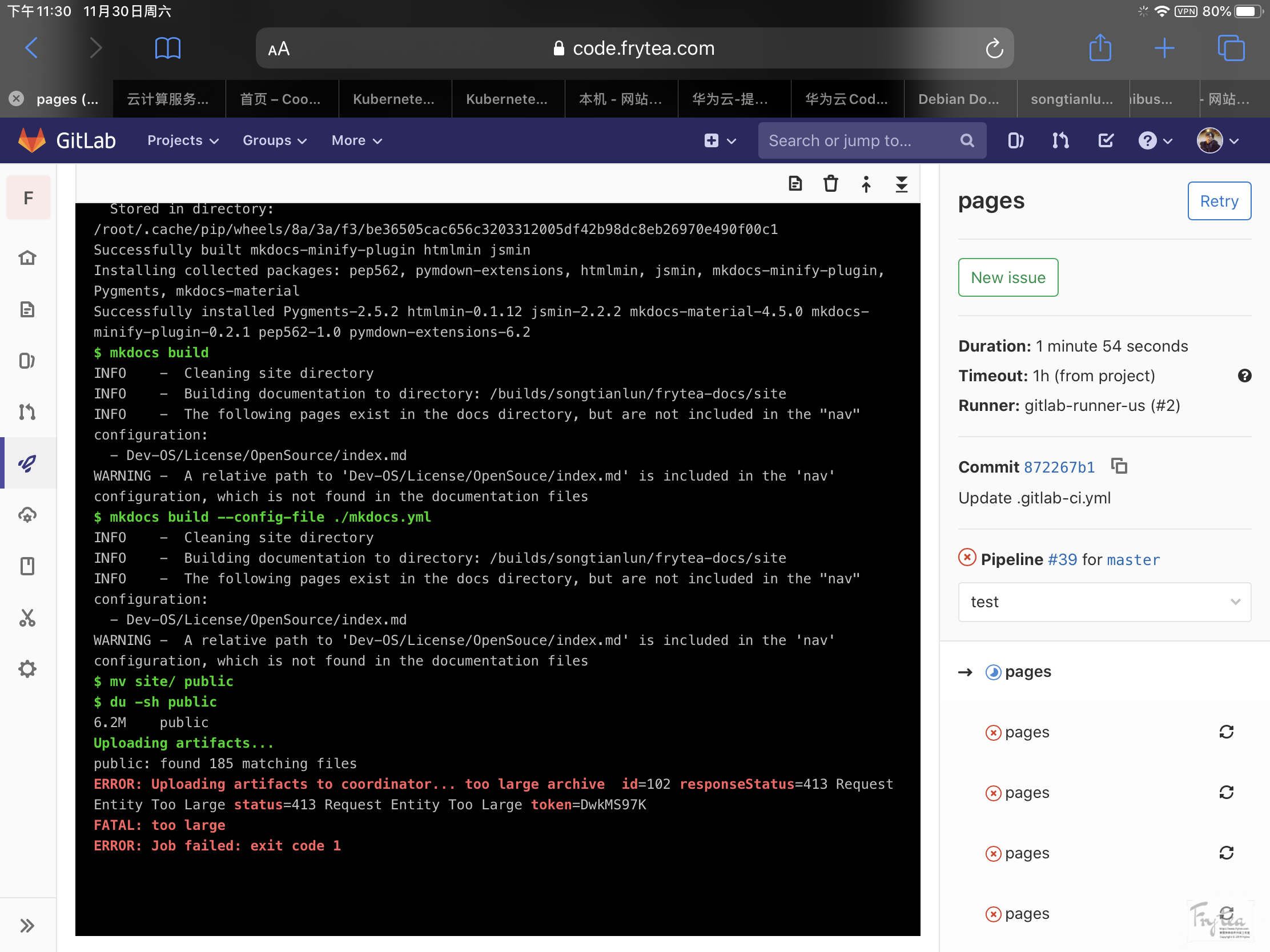
错误日志如下:


$ mv site/ public
$ du -sh public
6.2M    public
Uploading artifacts...
public: found 185 matching files                   
ERROR: Uploading artifacts to coordinator... too large archive  id=102 responseStatus=413 Request Entity Too Large status=413 Request Entity Too Large token=DwkMS97K
FATAL: too large                                   
ERROR: Job failed: exit code 1

大概是说提交体积过大引发接受端 413 错误,可是这是怎么回事呢?于是我使用 ERROR: Uploading artifacts to coordinator... too large archive 搜索了 BING cn, Google, BaiDu, 最终有两种方案:

In your gitlab, go to Settings > Continuous Integration and Deployment > Maximum artifacts size (MB) and set it to the desired value. The default is 100MB. 
In the gitlab.rb file, mine at /etc/gitlab/gitlab.rb, set or uncomment the following line.

nginx['client_max_body_size'] = '250m' 

尝试后 终无果。

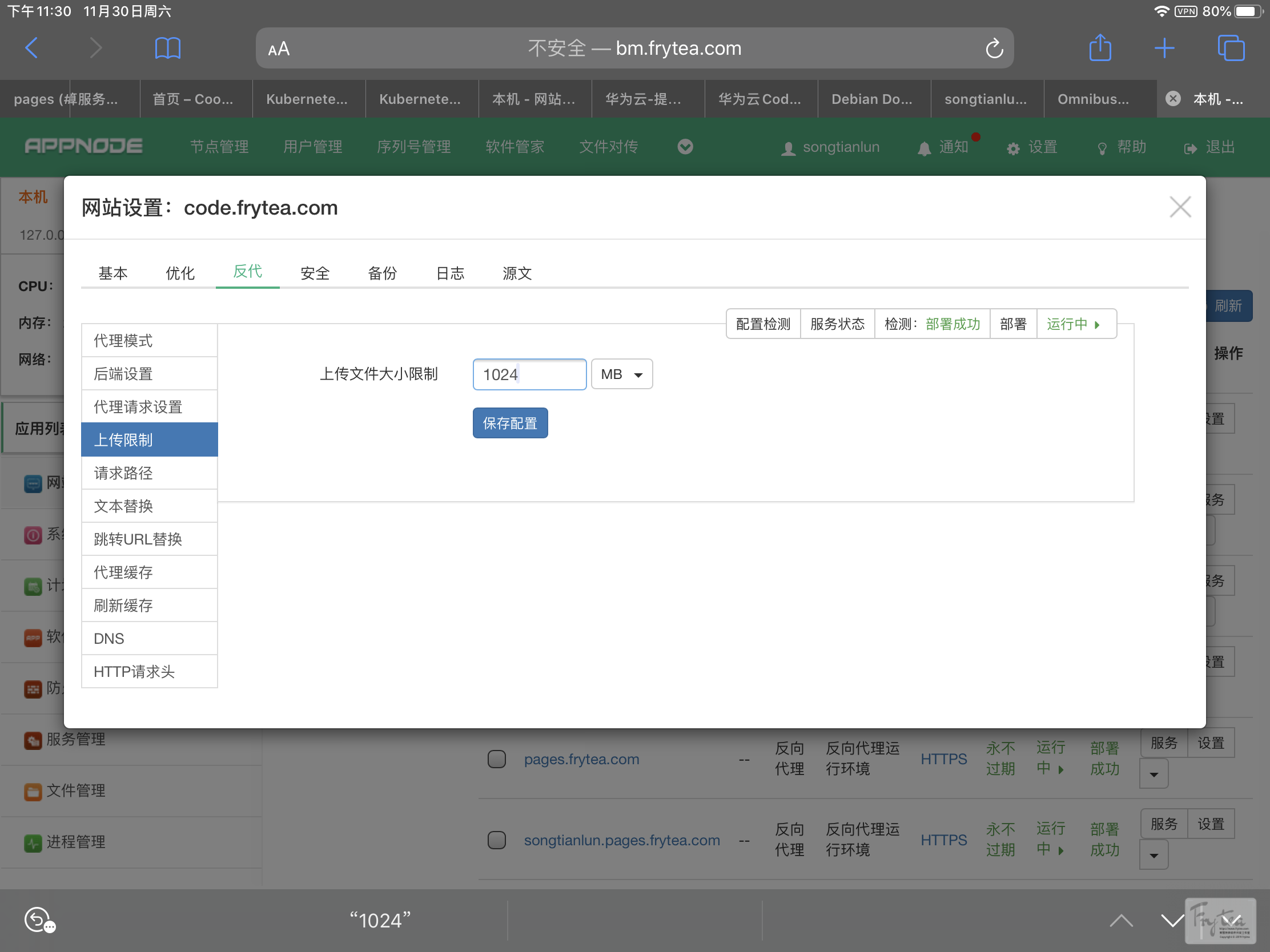
终于在今天晚上,今天晚上,再错误中挣扎了 48 小时后,突然灵光一现,是反代的 nginx 设置错误!!!

我的 GitLab 服务器配置在一台裸金属服务器内部的虚拟机上,没有为它分配外网 IP ,为了使用域名解析,我在宿主机上使用反向代理将域名请求反向代理到内网 IP 上,从而实现了外网访问 GitLab ,但问题就出在这个反代的服务器上了,我思前想后找遍了 GitLab 的配置文件就是没有往它身上想。终于今天我打算使用境外服务器 Runner 配置一下,拉取代码的时候我突然意识到这个问题。

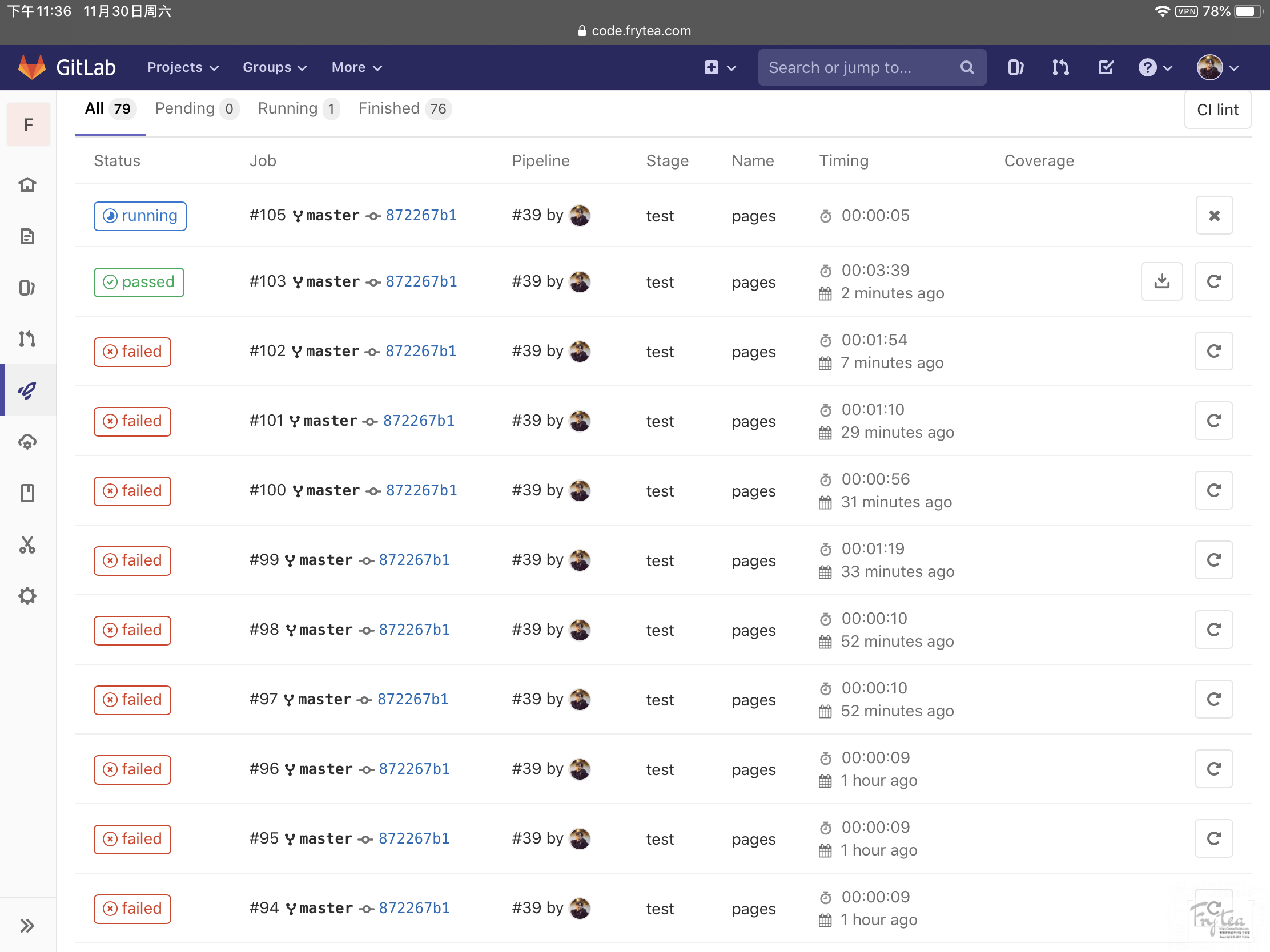
修改后完成,在经历了100多次尝试后,我终于找到了问题所在!!!

好了好了,这件事情带给我几点启示:

  • 在实践过程中可能会遇到很多奇葩问题,且并不是所有问题都是“讲理的”
  • 遇到问题别慌,想办法,理思路,实在解决不了放一放,别钻牛角尖

收工睡觉,我终于能好好睡个觉了。本来想着随便弄一弄,没想到一下子弄这么久,教训还是挺实用的,正好可以用于研究生入学考试,遇到问题别慌,用自己的脑子理性思考!

宋天伦 2019.12.1

KVM虚拟机安装 GitLab EE

GitLab 是一个基于网页的软件开发生命周期管理工具,提供了 git 代码仓库、知识库、问题追踪、CI/CD 流水线功能,使用开源许可证,由 GitLab 公司开发(来自 WikiPedia)。

自建 GitLab 服务器基于以下原因:

  1. GitHub 到国内的访问速度实在堪忧
  2. 随着某种关系的变化发展,作者并不指望这种状况有什么改善
  3. Git 仓库速度缓慢会拖慢开发效率
  4. GitHub Pages 的访问速度慢,托管在此的网页对于国内用户实在太不友好
  5. GitLab 提供的 CI/CD 流水线功能比较完善
  6. GitLab 的文档很全面,英文说明还不错,值得探索
  7. 借此机会提高英文

自建方法还是基于 KVM 虚拟化一台 Ubuntu 虚拟机,并由这台虚拟机提供服务,外网由宿主机反向代理到内网实现外网访问。本文记录基于此上描述的环境及日后遇到的解决方案,本文带有一个持续更新区。

虚拟化

  1. 创建虚拟磁盘

    qemu-img create -f qcow2 ubuntu_gitlab.qcow2 100G
  2. 新建虚拟机

    
    virt-install \
    --virt-type=kvm \
    --name=ubuntu_gitlab \
    --hvm \
    --vcpus=4 \
    --memory=6144 \
    --cdrom=/srv/kvm/iso/ubuntu-18.04.3-live-server-amd64.iso \
    --disk path=/srv/kvm/ubuntu_gitlab.qcow2,size=100,format=qcow2 \
    --network network=default \
    --graphics vnc,password=tianlun666,listen=::,port=5914 \
    --autostart \
    --force

3. 安装

在安装的过程中,为虚拟机配置网络如下:

 - statics ip : `192.168.122.4`
 - GatWay: `192.168.122.1`
 - name server: `192.168.122.1`
 - Subnet: `192.168.122.0/24`

## 安装 GitLab

GitLab 官方提供的[安装说明](https://about.gitlab.com/install/)很全面,本文提取其中关键步骤,具体安装请以官网文档为准。

1. 安装并配置相关依赖

$ sudo apt-get update $ sudo apt-get install -y curl openssh-server ca-certificates


[tip type="info" title="安装Postfix (选装)"]
GitLab 支持 Postfix, SMTP 等方式实现邮件通知,使用SMTP请跳过此步,如果需要安装Postfix邮件请执行以下的命令:

sudo apt-get install -y postfix

安装过程中可能会出现一个全屏显示窗口,此时选择'Internet Site'并回车,使用你服务器的外部 DNS 作为'mail name'并回车,不出意外的话安装会继续进行。
[/tip]

2. 添加 GitLab 软件源

curl https://packages.gitlab.com/install/repositories/gitlab/gitlab-ee/script.deb.sh | sudo bash


3. 运行 GitLab 安装

将代码中的网址替换为您为 GitLab 准备的地址,GitLab 会使用 Let's Encrypt 验证您的域名并自动为其配置 SSL。

sudo EXTERNAL_URL=”https://gitlab.example.com” apt-get install gitlab-ee


4. 设置默认 root 密码。

使用浏览器进入您上一步设置的地址,使用 `root` 账户登录,系统会提示您为其设置密码。

## 案例汇总(持续更新区)

### 为 GitLab 配置 SMTP 邮箱

1. 依次修改配置文件

vim /etc/gitlab/gitlab.rb

依次修改

gitlab_rails[‘smtp_enable’] = true gitlab_rails[‘smtp_address’] = “smtp.mxhichina.com” gitlab_rails[‘smtp_port’] = 25 gitlab_rails[‘smtp_user_name’] = “gitlab@yinnote.com” gitlab_rails[‘smtp_password’] = “xxxxxx” gitlab_rails[‘smtp_domain’] = “yinnote.com” gitlab_rails[‘smtp_authentication’] = “login” gitlab_rails[‘smtp_enable_starttls_auto’] = true gitlab_rails[‘smtp_tls’] = false

gitlab_rails[‘gitlab_email_from’] = “gitlab@yinnote.com” user[“git_user_email”] = “gitlab@yinnote.com”


2. 生效配置并重启 GitLab

$ gitlab-ctl reconfigure $ gitlab-ctl restart


3. 监听日志打印

如果出现问题,可以使用该命令在控制台监听日志。

$ gitlab-ctl tail


4. 可能用到的 VIM 命令

整页翻页 ctrl-f ctrl-b

f就是forword b就是backward

翻半页

ctrl-d ctlr-u d=down u=up

滚一行

ctrl-e ctrl-y

zz 让光标所在的行居屏幕中央 zt 让光标所在的行居屏幕最上一行 t=top zb 让光标所在的行居屏幕最下一行 b=bottom

查找

/string

向前(Forward)查找字符串string

按下回车后,光标就能跳到正确的地方


### 手动刷新 Let’s Encrypt 证书

sudo gitlab-ctl reconfigure sudo gitlab-ctl renew-le-certs


## 参考文献

 - [GitLab Installation](https://about.gitlab.com/install/)
 - [WikiPedia/GitLab](https://en.wikipedia.org/wiki/GitLab)
 - [VIM中的翻页命令](https://blog.csdn.net/nyist327/article/details/48625385)
 - [VIM 查找文本](https://blog.csdn.net/hitustc/article/details/5585101)
 - [GitLab邮件配置](https://www.jianshu.com/p/b91d2e676cba)
 - [Git:gitlab修改域名配置](https://blog.csdn.net/qq_36937234/article/details/89381857)
 - [SSL Configuration](https://docs.gitlab.com/omnibus/settings/ssl.html)
 - [使用SSL证书保护GitLab服务器的方法](https://ywnz.com/linuxyffq/3961.html)